
How to enable Two Factor Authentication (2FA)
EditTwo factor Authentication is a security mechanism to give you an extra layer of security on your account. More information can be found here.
Enable 2FA using time-based one-time passwords (TOTP)
To enable a TOTP Password you will need a compatible client. You can find some proposals here.
Download one compatible TOTP client, connect to your Murena Workspace account, then go to your user security settings and make sure
Enable TOTPis checked.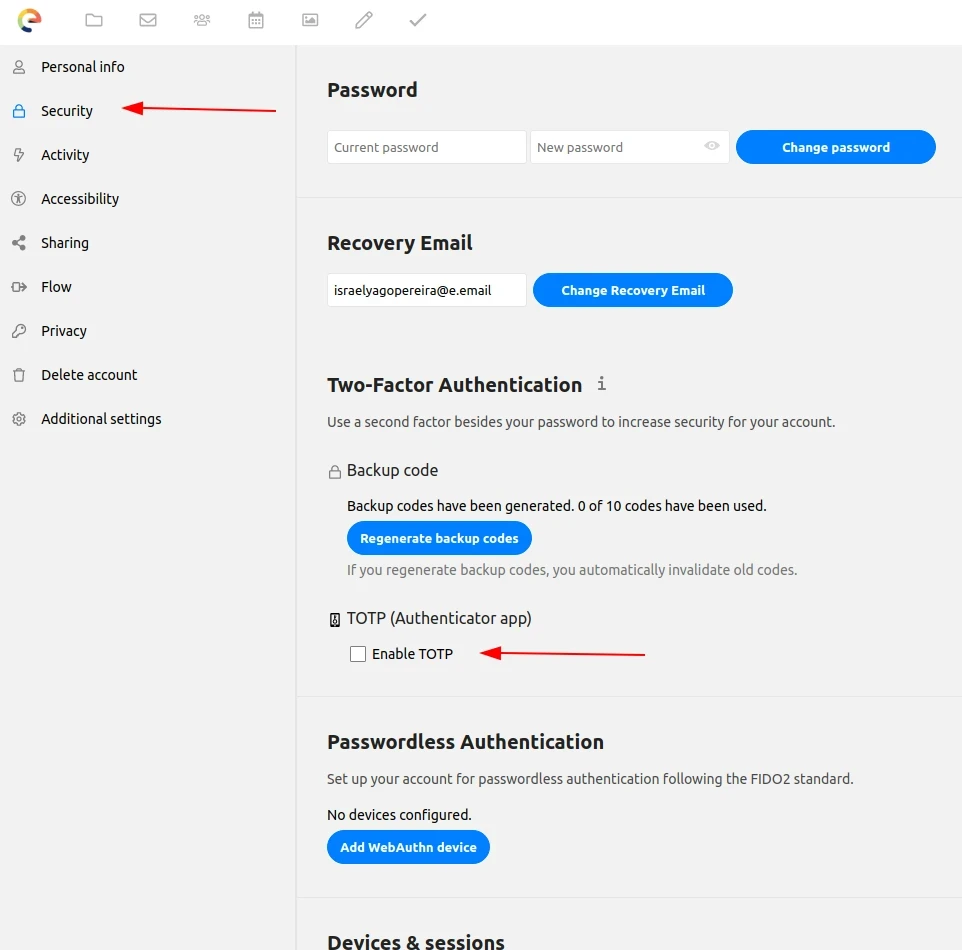
The TOTP secret and QR code will be right below it.
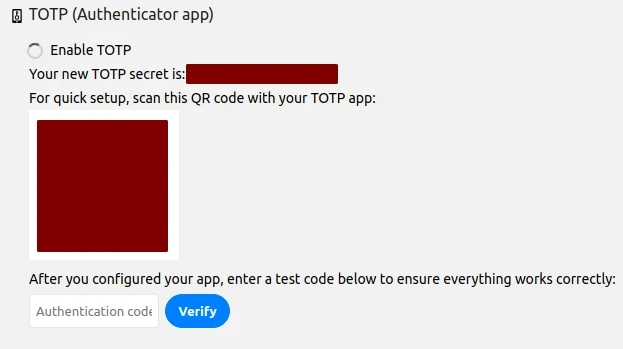
Open the TOTP app, then read the QR code shown at step 2 OR type the TOTP secret exactly as it is written.
To make sure everything is working, place the generated code at the verification field box and click on
Verify.Remember: For security reasons those generated codes expire in about 30 seconds and will not work after that.
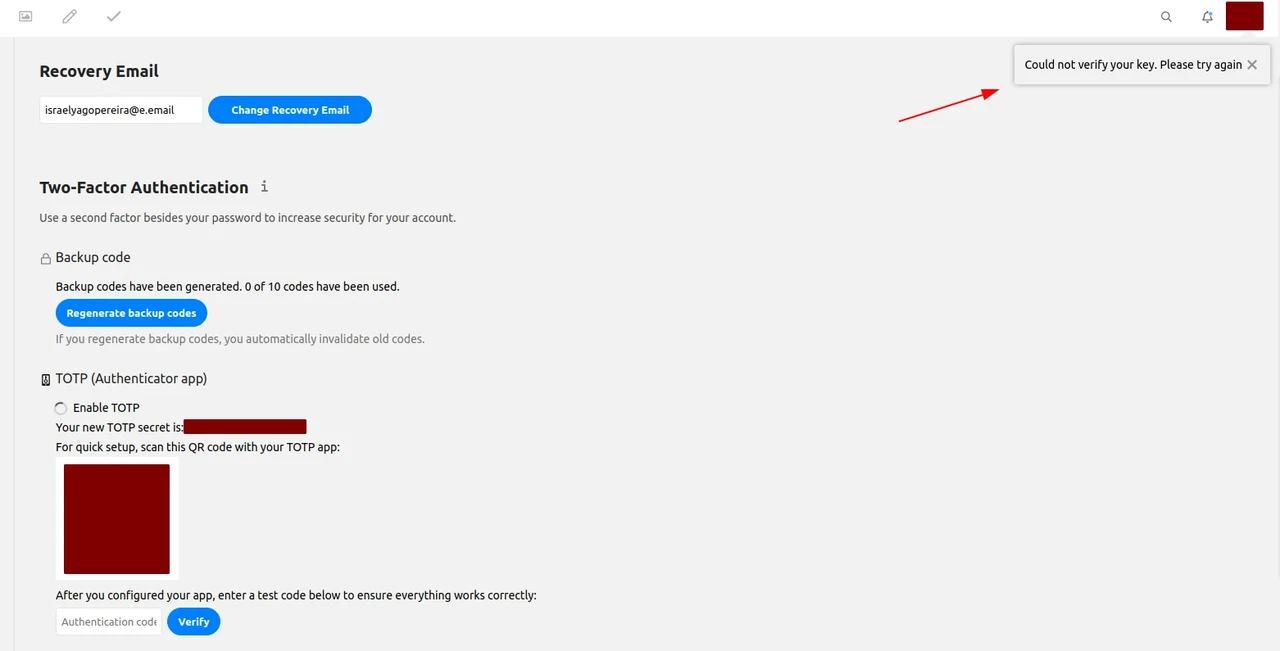
If the verification fails, a small popup will appear alerting you of that.
A new code will be calculated every 30 seconds (depending on the TOTP configuration) and will be needed every time you connect to your Murena Workspace account.
2FA is now enabled on your account.
Disabling two-factor authentication (2FA)
- Connect to your Murena Workspace account.
- Go to your user security settings.
- Make sure
Enable TOTPis unchecked.
Manually setup Mail application
Go to your Mail app. You will be prompted to write your credentials there.
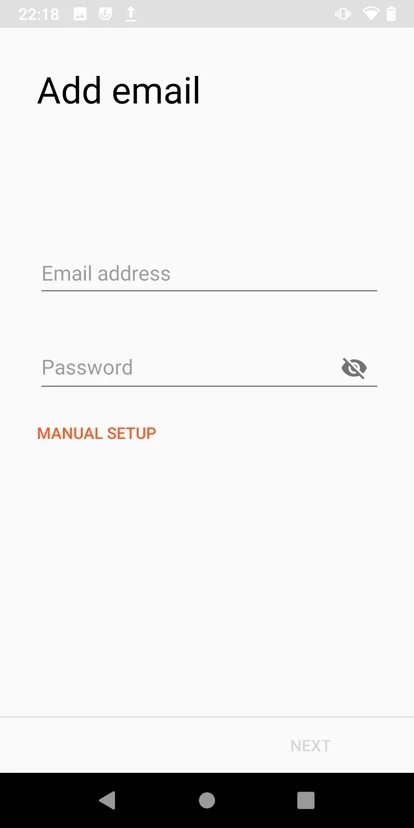
Using your Murena Workspace main password, fill in the fields.
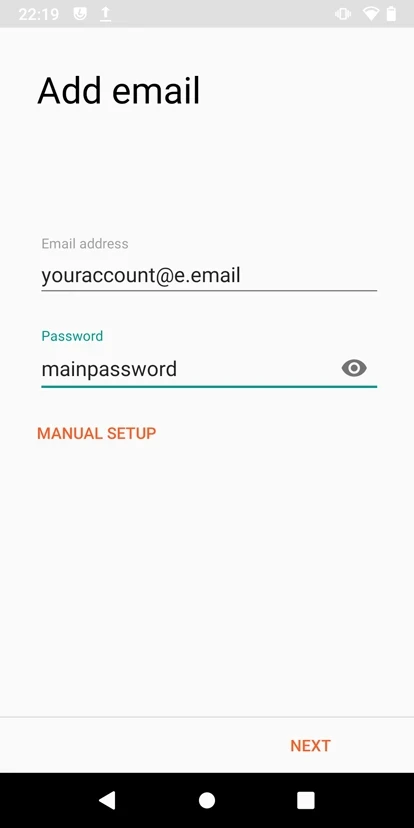
It may be necessary to manually setup the mail application. For this, tap on
MANUAL SETUPand fill in the fields such as the image below and tap on next. Do not forget to change the email address!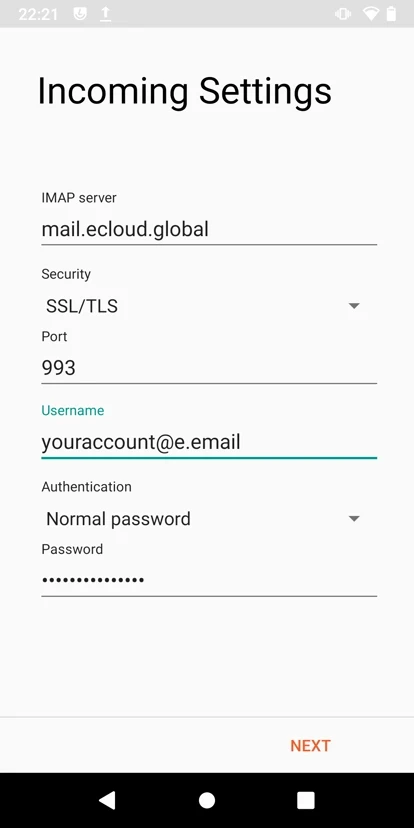
If necessary, more information to configure your mail IMAP settings can be found here.
Using an application password for the eOS account manager
Connect to your Murena Workspace account, then go to your user security settings. In the section
Devices & sessions, type the application name and click onCreate new app password.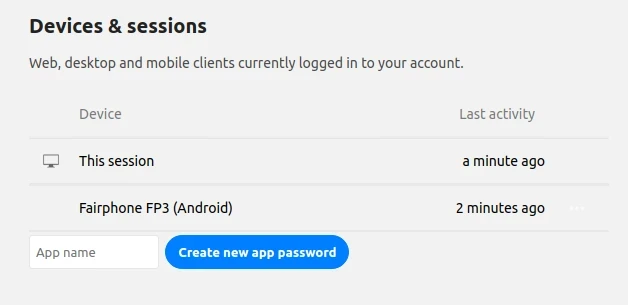
The login and password to your application will be shown as the image below. Make sure to annotate it for the next steps.
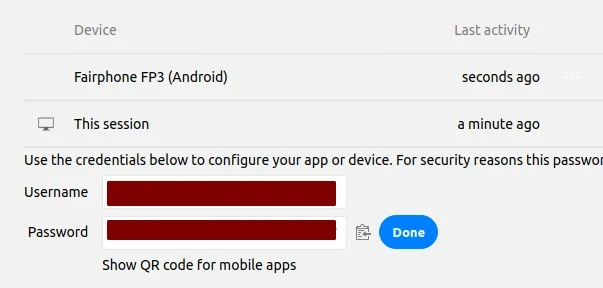
Now on your eOS smartphone, go to
Settings.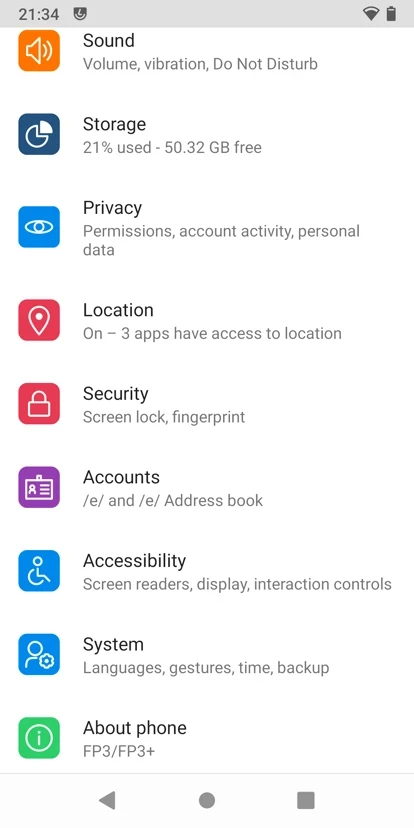
Tap on
Accountsand thenAdd account.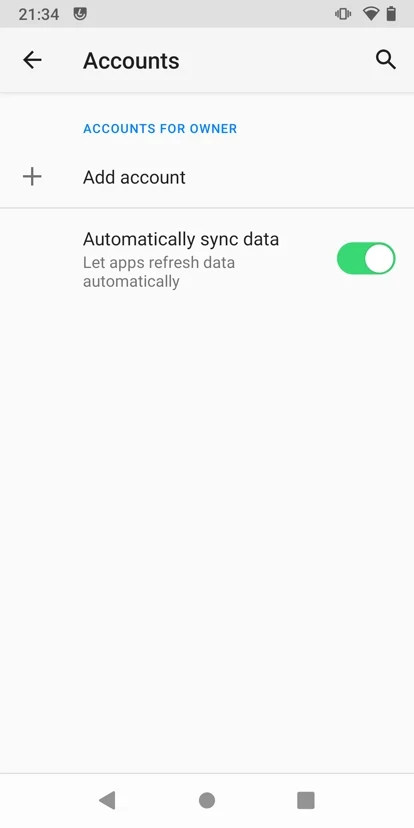
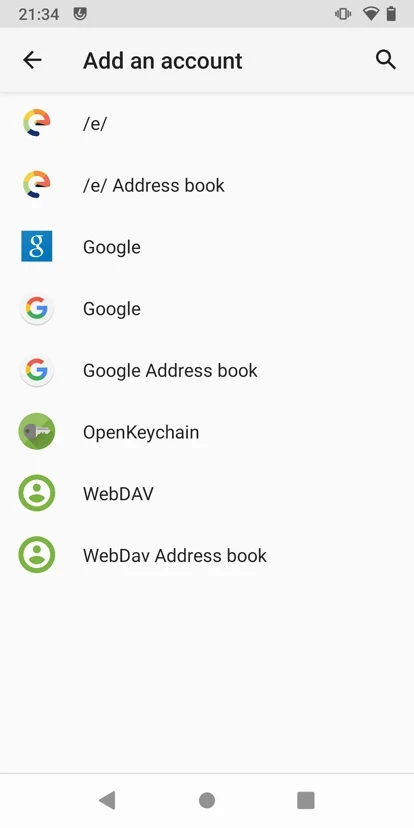
Complete the field boxes with the login and password saved before.
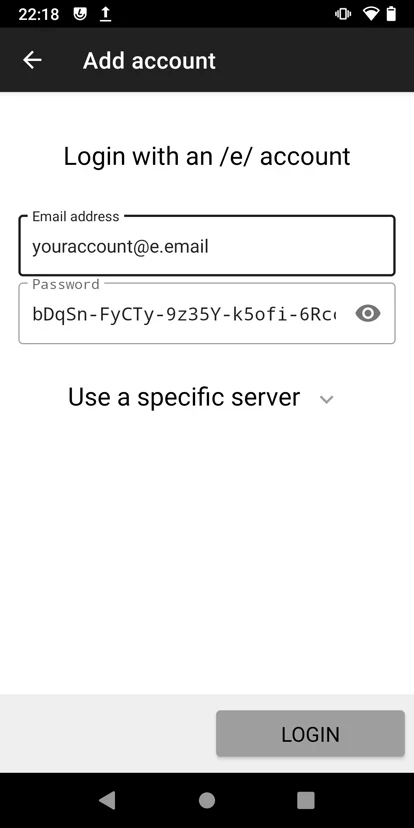
Tap
Loginto complete the process.