
How to setup Android Auto with /e/OS?
Edit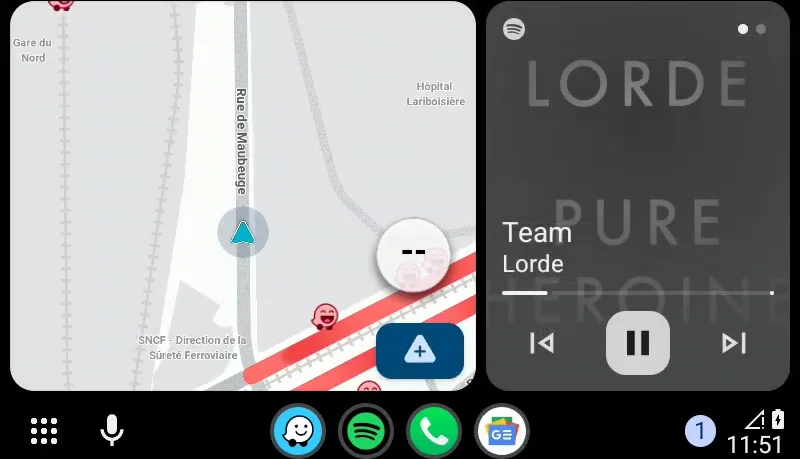
With the launch of /e/OS v2.0, we’ve added support for Android Auto. Follow along to setup Android auto with /e/OS.
Steps to Install Android Auto
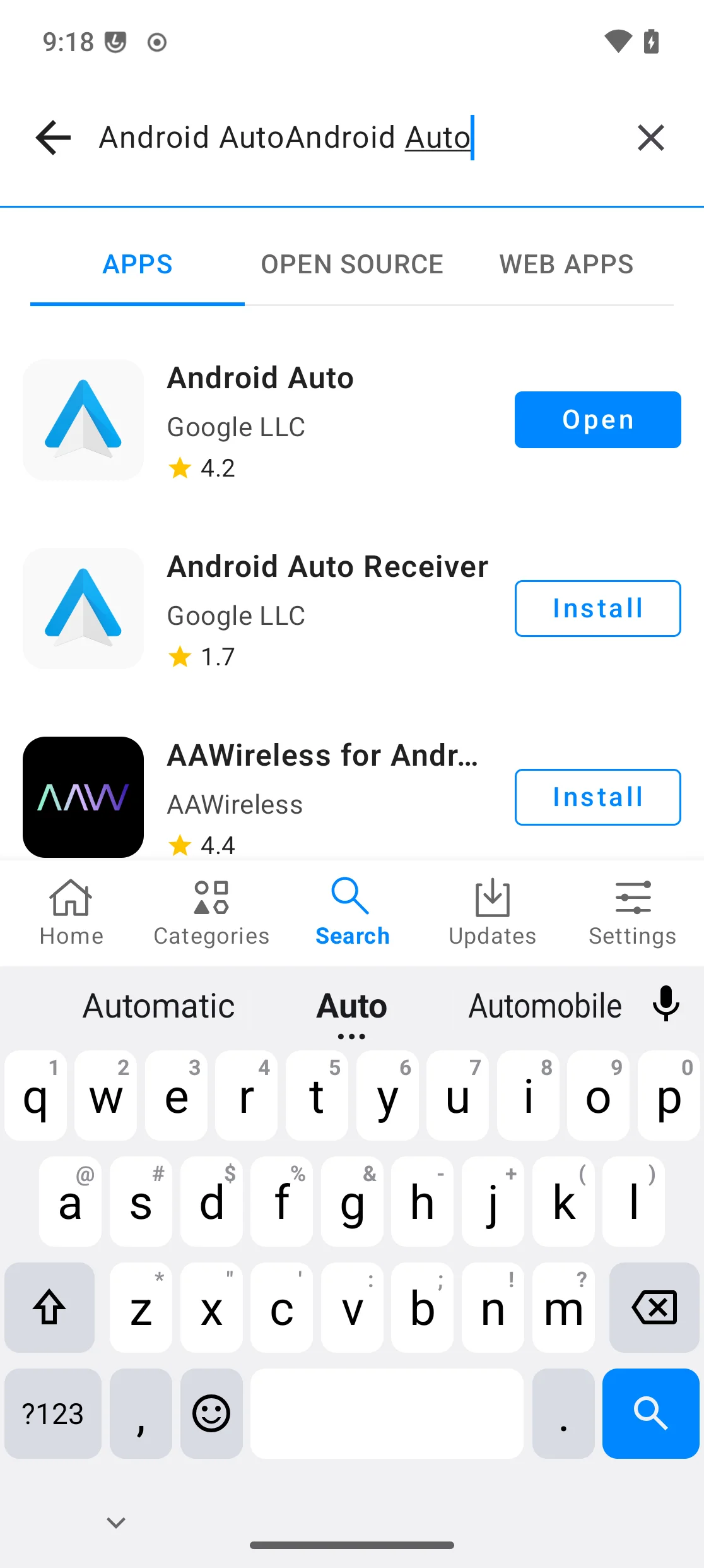
All four apps are installed through App Lounge.
Install Google.
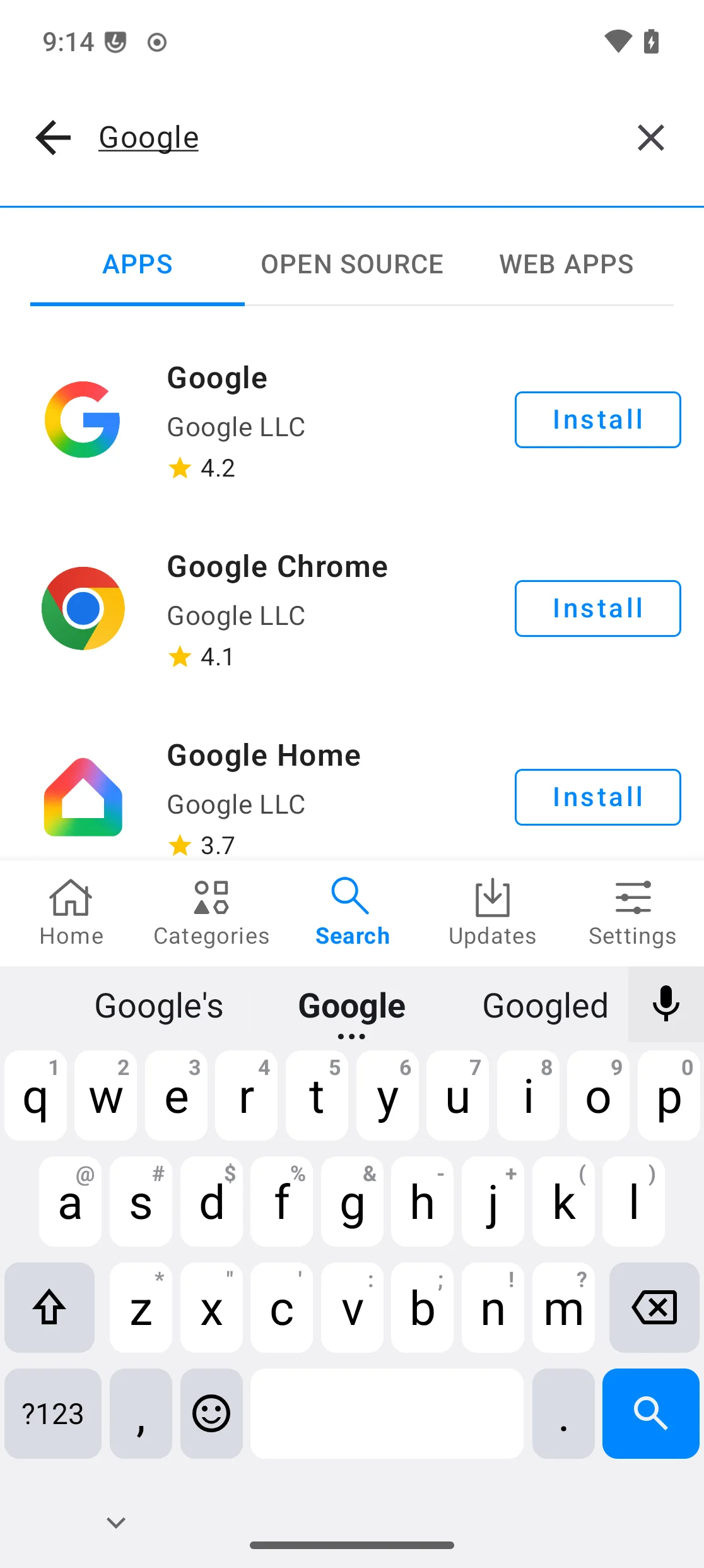
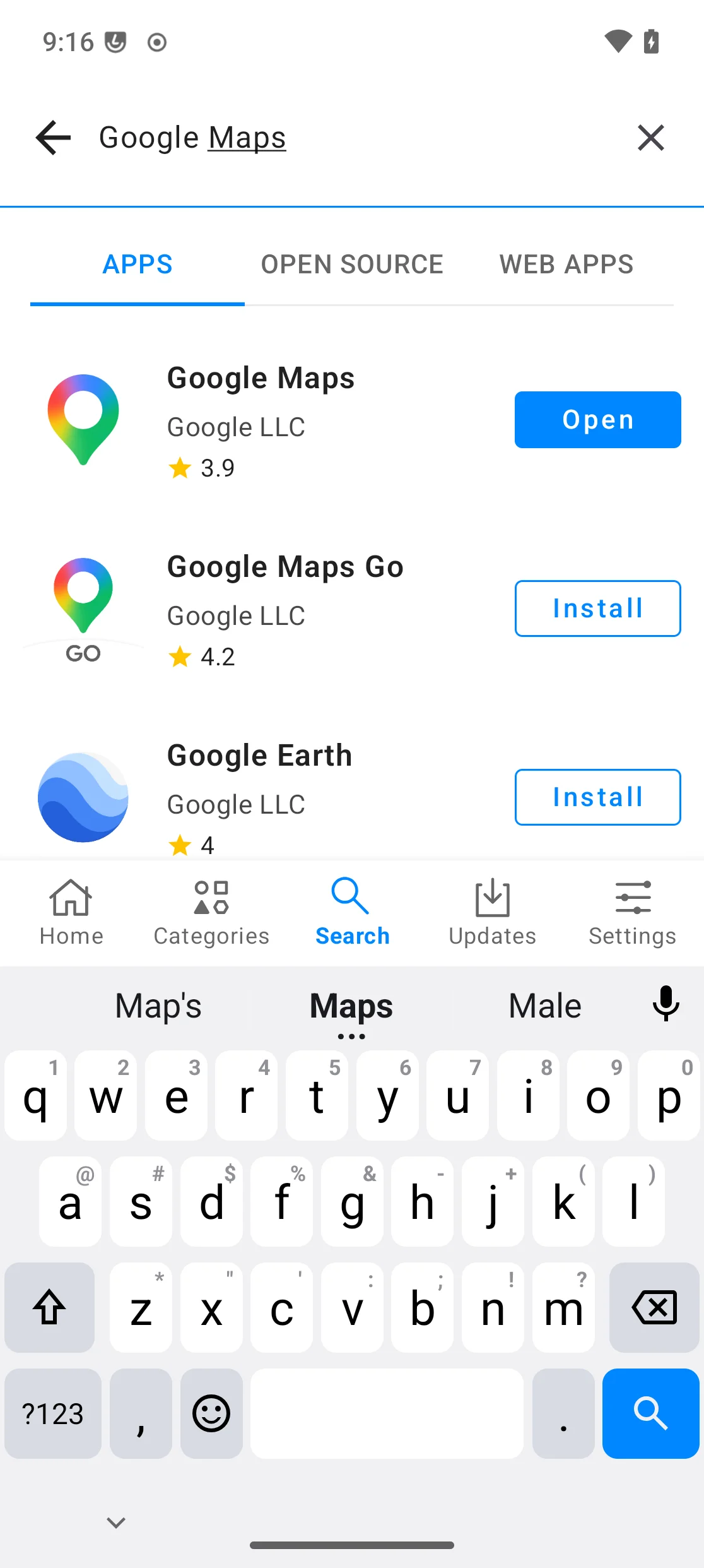
Once installed, install Google Maps.
Proceed with installing Google Speech Recognition & Synthesis.
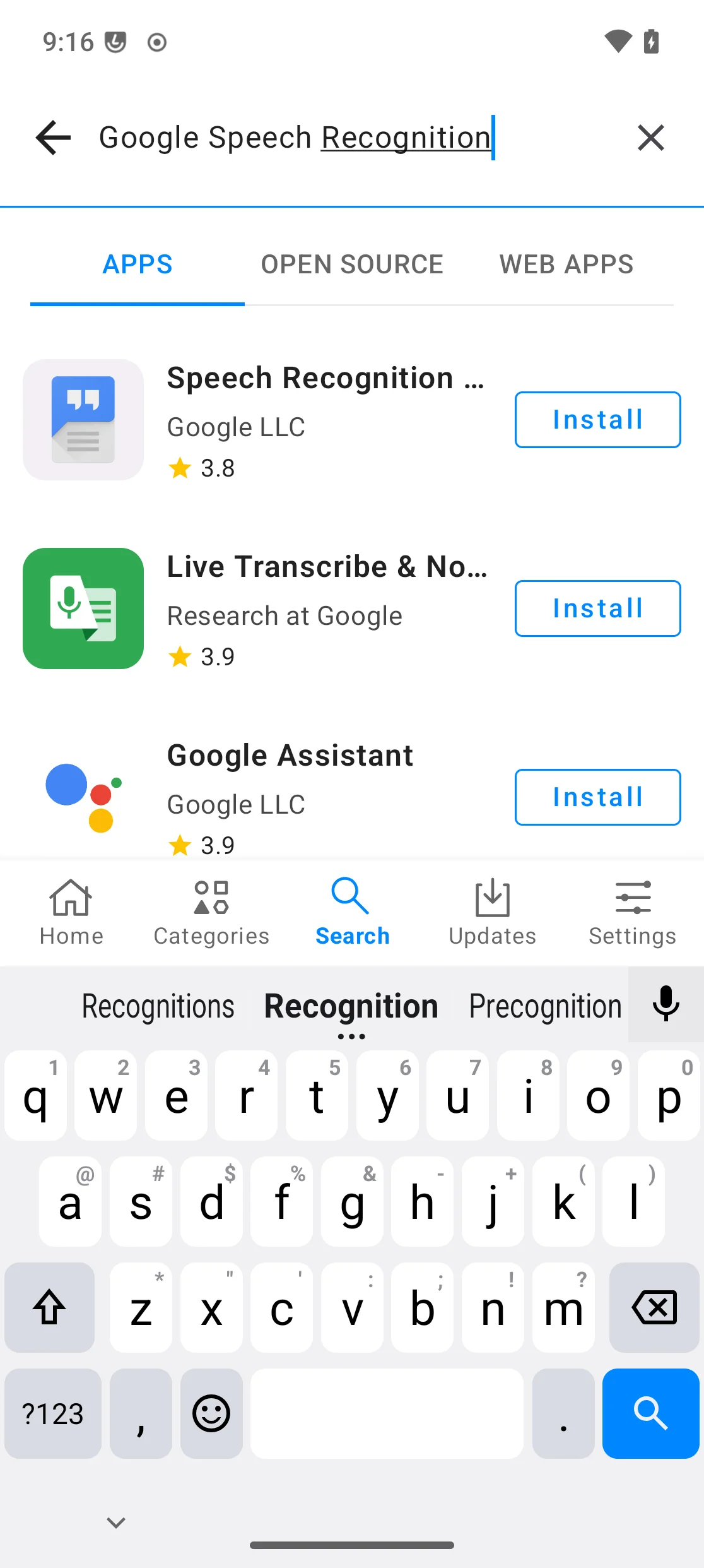
Finally, update Android Auto itself, then reboot the device.
Setup Android Auto on your Car
Connect your /e/OS device with a Car that’s compatible with Android Auto. Only a USB cable that supports data transfer will work.
If everything goes well, you should see the following screen. Tap
OKif you agree:
Tap on
Continueif you agree:
Android Auto will ask you to continue the setup on your /e/OS device. Tap on
Go to phone:
On your /e/OS device you’ll be asked to turn ON notification access for Android Auto.
Settings→ searchNotification accessshows Android Auto under “Not allowed”: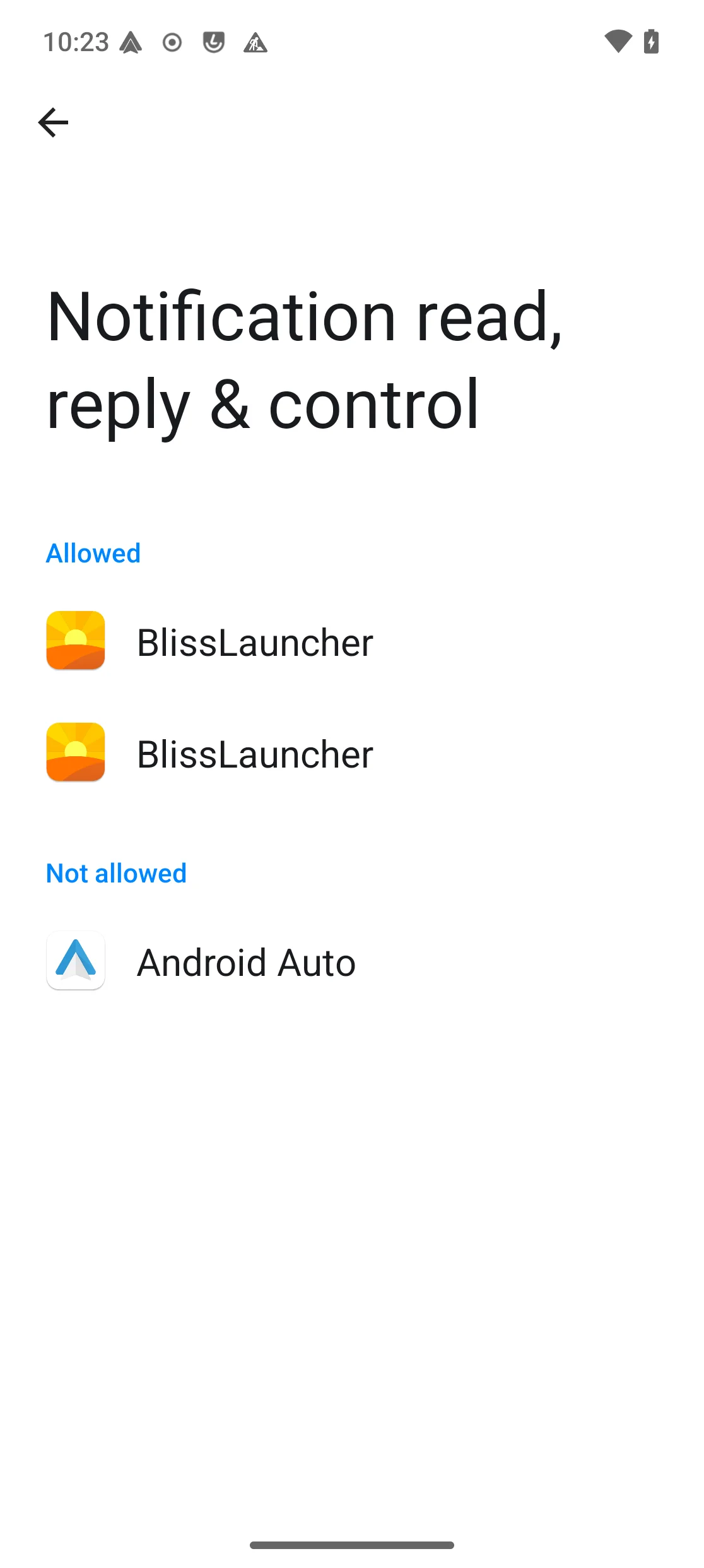
Tap it, then turn on
Allow notification accessand confirm: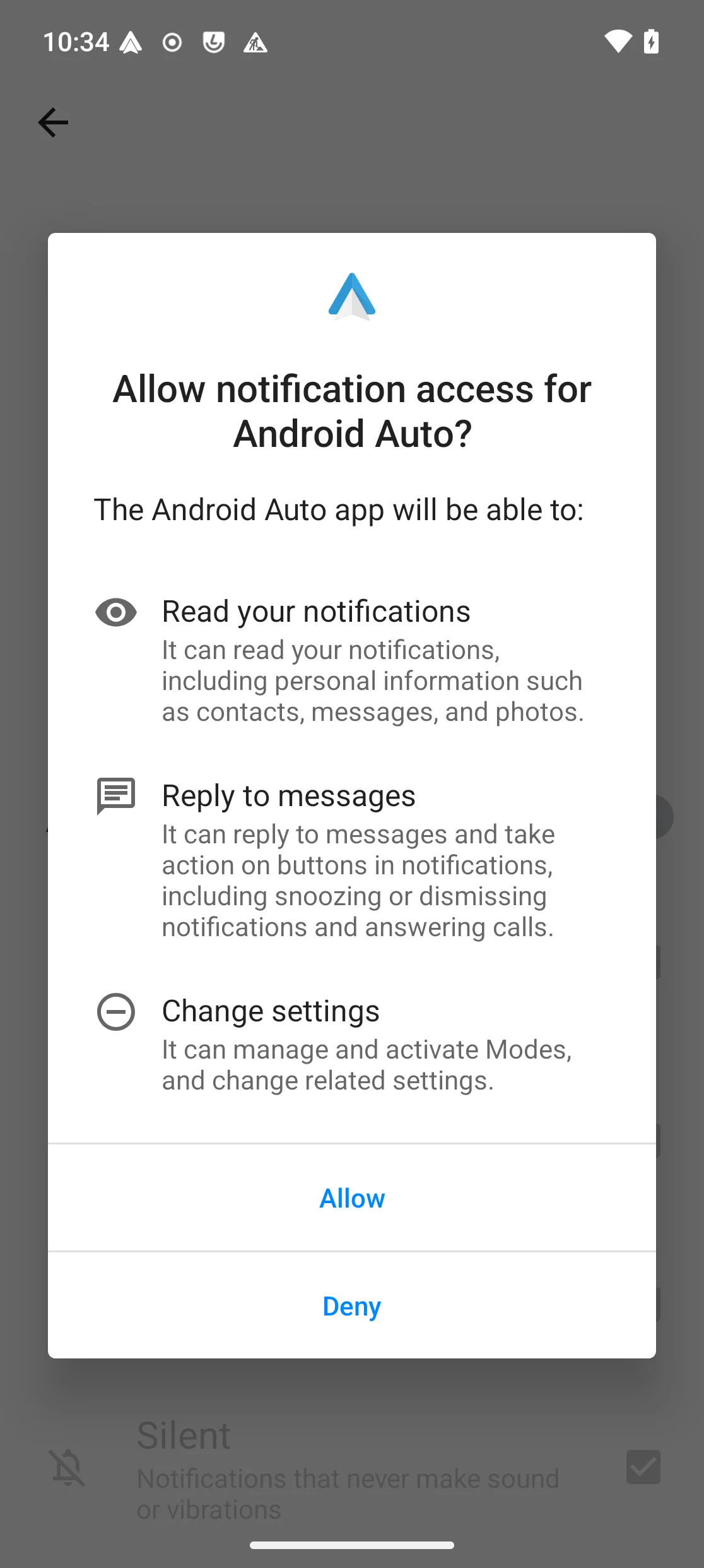
It now shows as allowed:
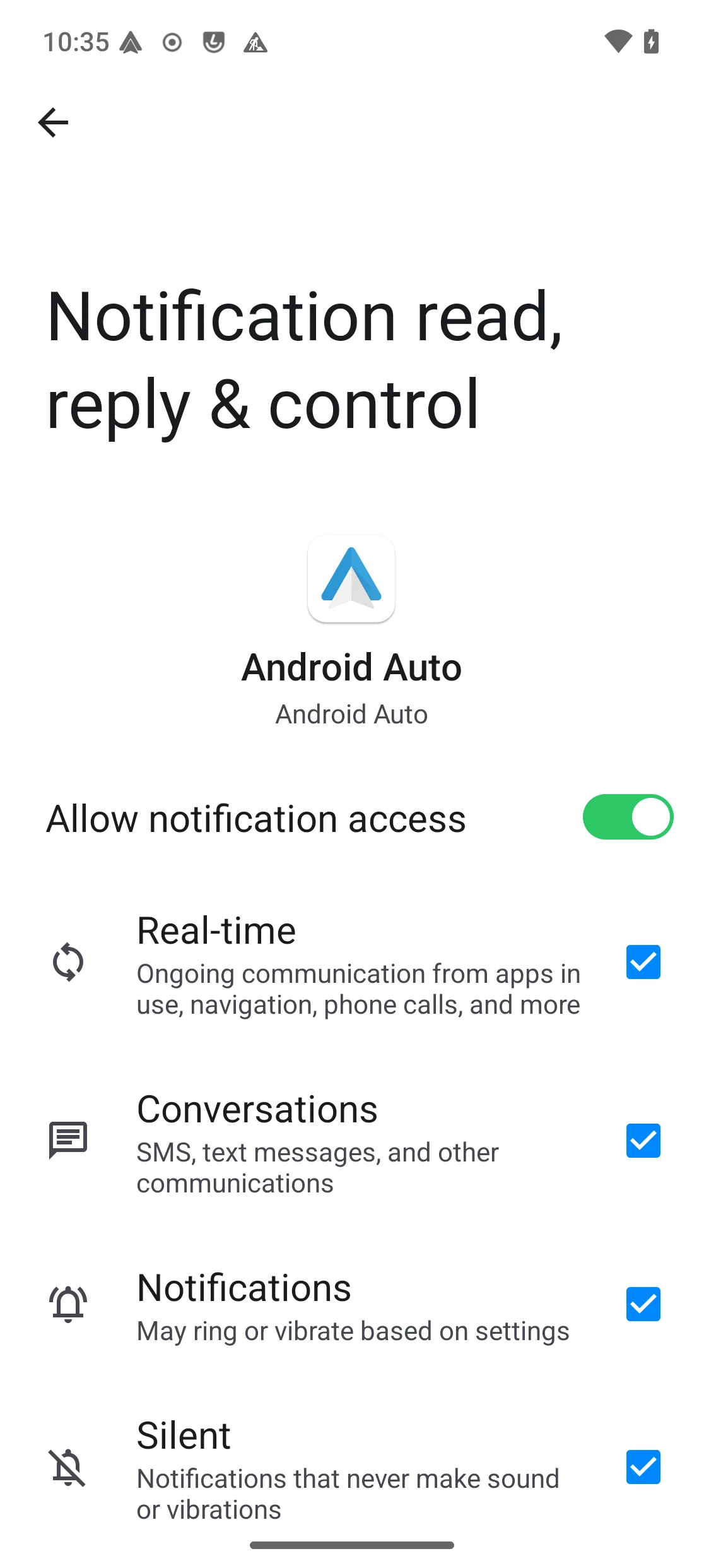
Once all permissions are granted, you’ll be able to see the Android Auto interface on your Car:
Troubleshoot apps not working with Android Auto
Sometimes apps like Spotify don’t work Android Auto (despite them being compatible). If you’re face this issue, follow the steps below:
- Launch the
Android Autoapp on your /e/OS device. - Scroll to the bottom and tap
Version10 times. - Navigate to Developer settings by tapping the
three-dot buttonat the top-right corner and tapingDeveloper settings. - Scroll down to
Unknown sourcesand turn itON.